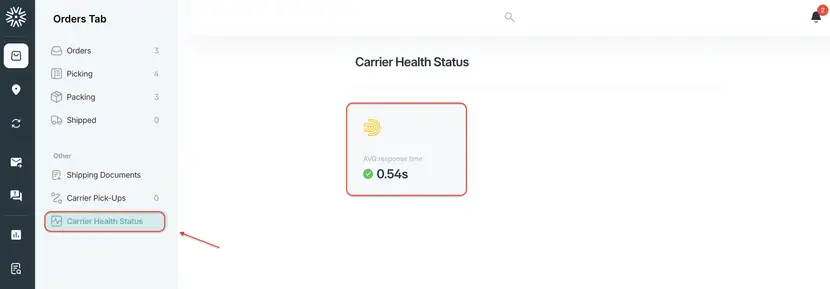
The Orders tab is your central hub for managing all orders. It's organized into the following sections:
- Orders
- Picking
- Packing
- Shipped
- Shipping Documents
- Carrier Pick Ups
- Carrier Health Status
1. Orders
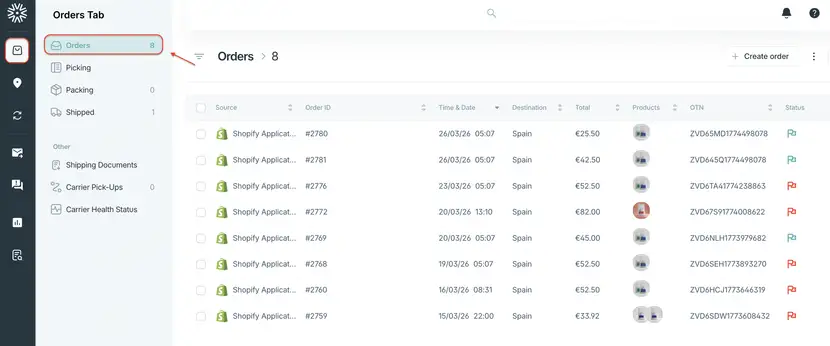
This section displays all orders imported directly from the channels and stores connected to your Outvio account.
Each order shows the most relevant information at a glance: source channel, Order ID, date and time, destination, total price, products, OTN, and order status.
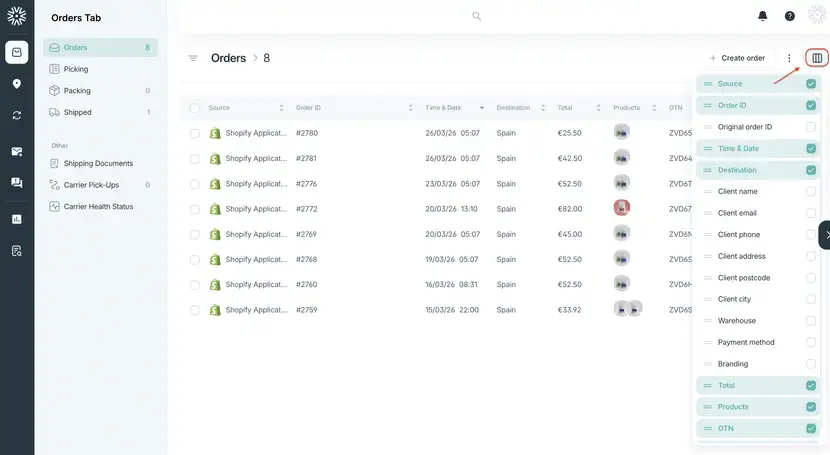
You can customize your view by adding or removing columns from the filters panel.
Creating an order manually
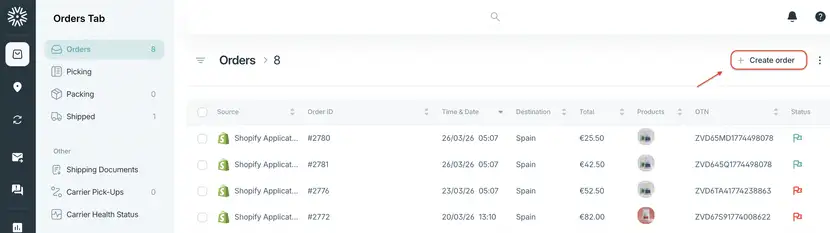
To create an order manually, click Create Order in the top-right corner.
Fill in the required fields and confirm.
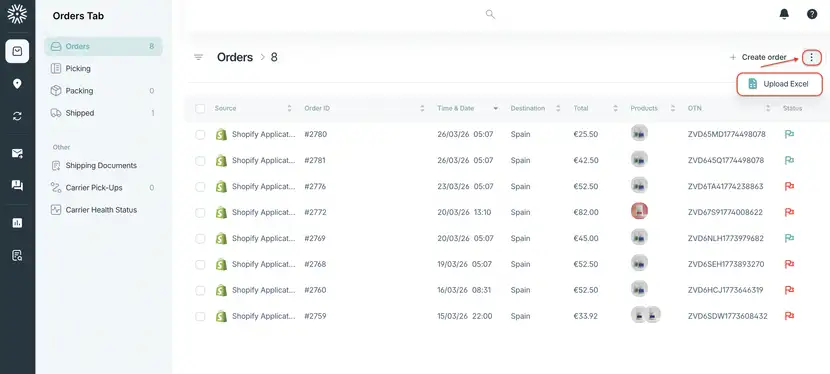
Uploading orders via excel
To import orders in bulk, click the three-dot menu next to the Create Order button, select the Excel upload option, and choose your file.
How to process your orders
To start processing, select the orders you want to fulfill. A screen will appear displaying two options: Ship Orders in Bulk or Start Packing.
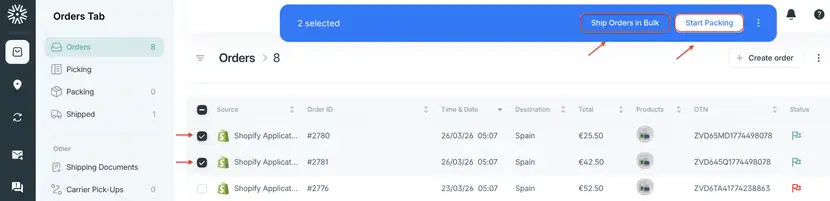
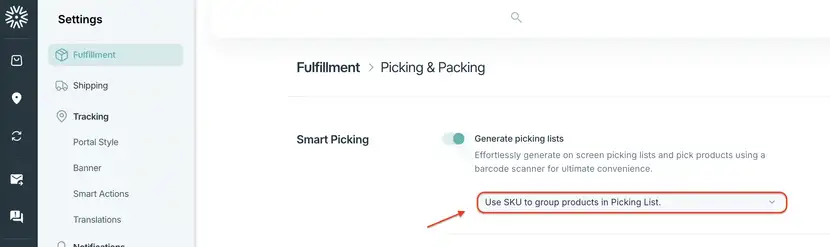
You can also route orders to picking lists by enabling the Smart Picking feature in your Fulfillment Settings.

2. Picking
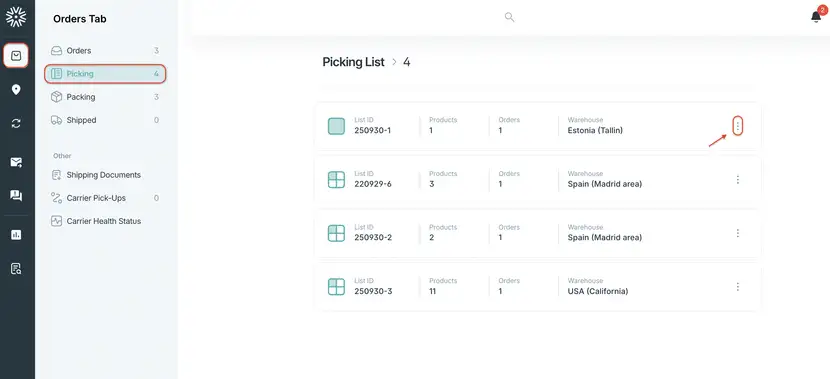
Here you'll find all your picking lists, helping your team prepare orders faster.
Each picking list is linked to a warehouse and can include one or more products across one or more orders.
To get started, click Start Picking from the three-dot menu.
You can choose to group products by SKU or barcode in the Fulfillment Settings section.
3. Packing
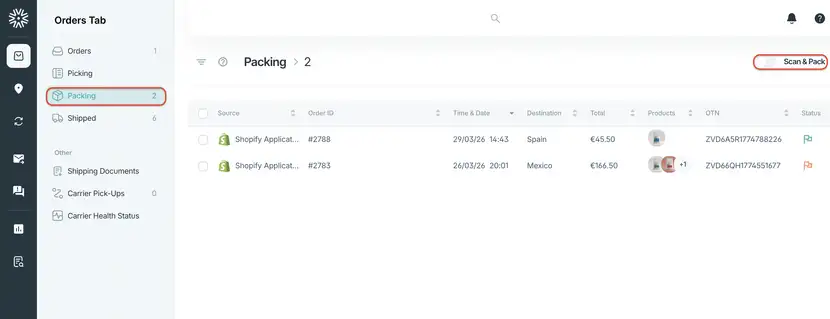
Here you will find all the orders you have sent for packing.
There are two ways to pack orders: using the Scan and Pack feature, or by submitting orders in bulk.
Scan and Pack
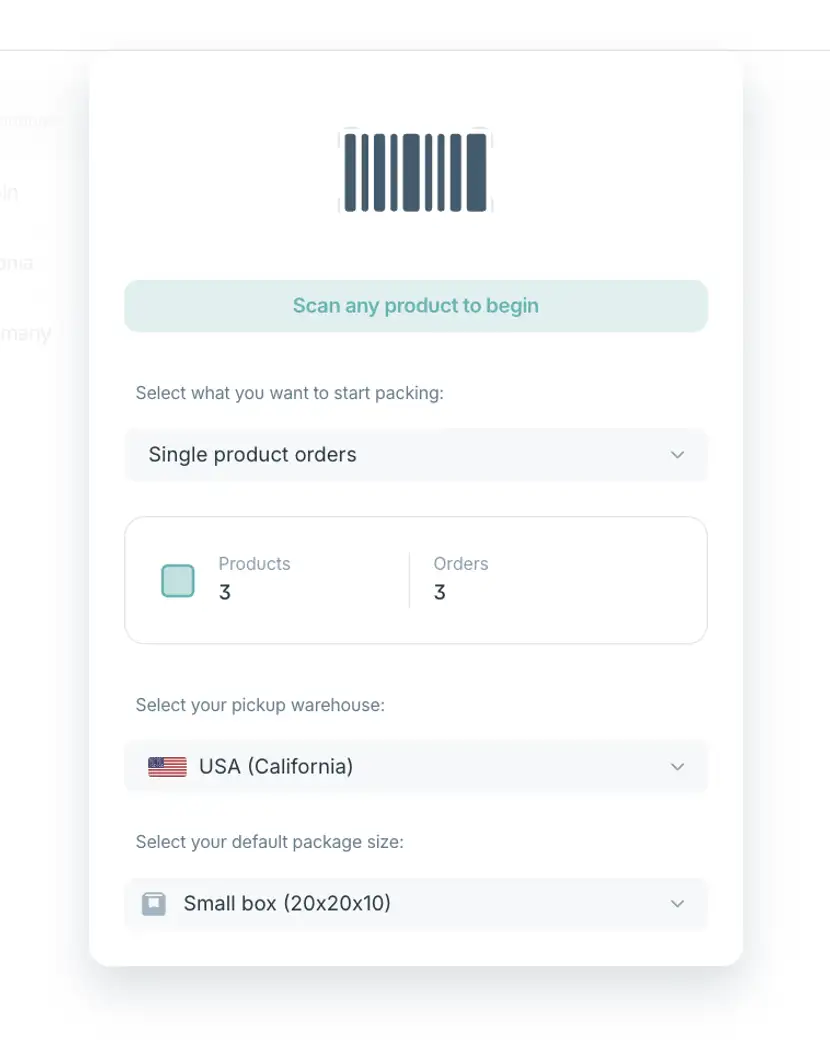
The Scan and Pack feature allows you to process orders by scanning barcodes.
To get started, simply click the Scan and Pack button in the top right corner.
A dropdown will appear, just scan the barcode to start packing the order.
Ship orders in bulk
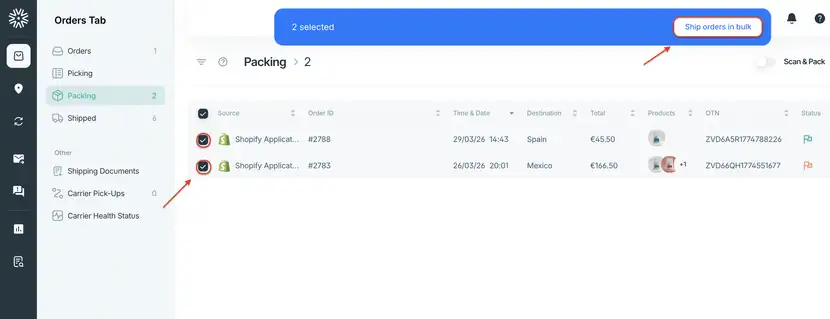
Select the orders you wish to submit. A dropdown menu will appear with the option to send orders in bulk. Simply click on it.
It's that easy!
4. Shipped
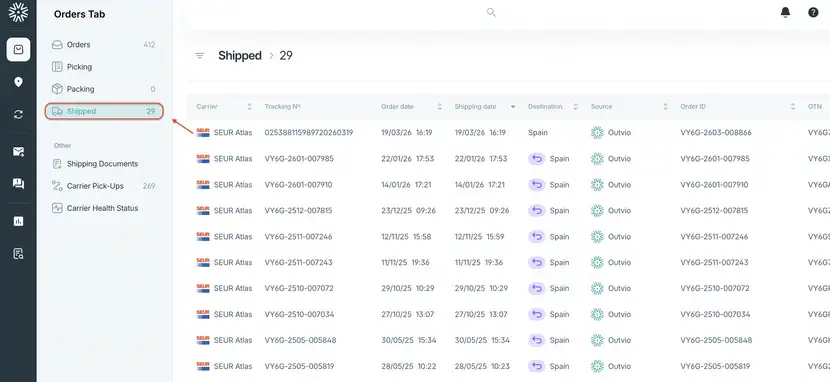
In Shipped, all orders that have already been prepared and are waiting to be picked up by the carrier are displayed.
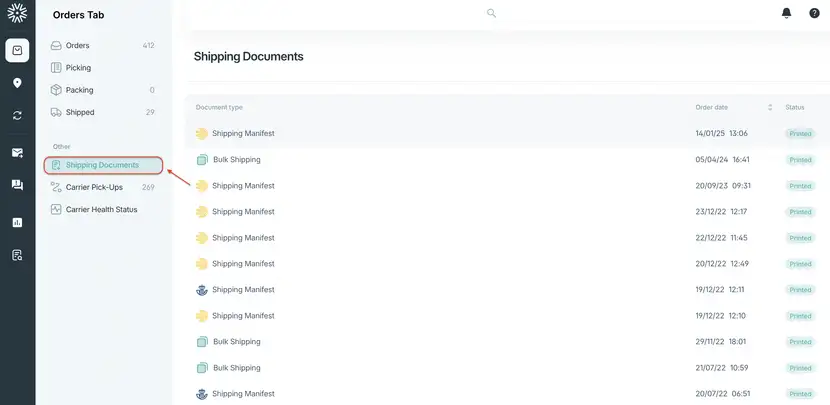
5. Shipping document
This section centralizes all shipping-related documents generated for your orders, making them easy to access, download, and manage in one place.
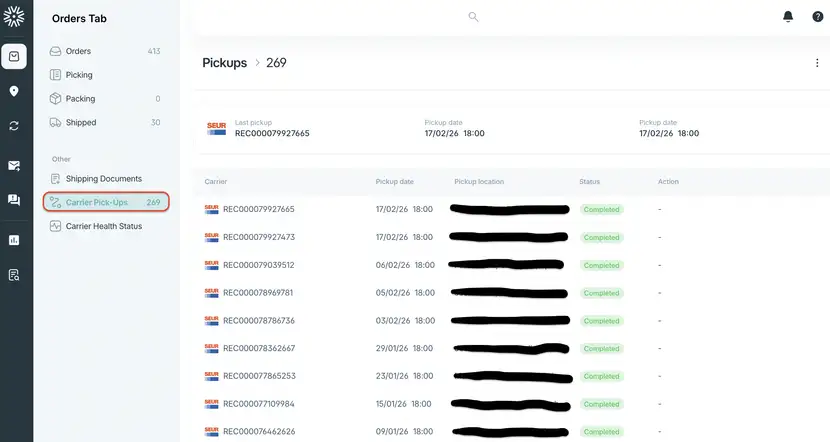
6. Carrier pick ups
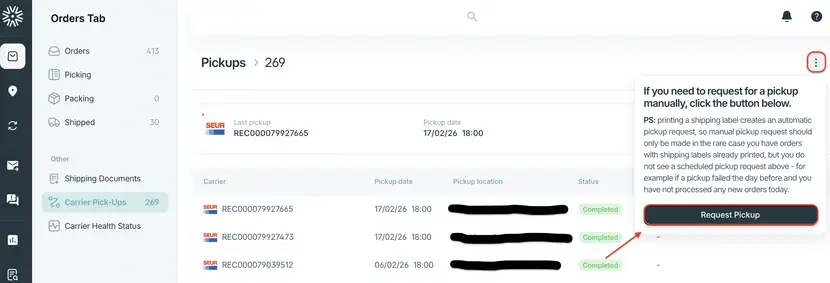
This section shows all scheduled carrier pick-ups, giving you a clear overview of when and where your shipments will be collected.
7. Carrier health status
This section gives you a real-time overview of your carriers' operational status, so you can quickly identify any incidents or service disruptions that may affect your shipments.